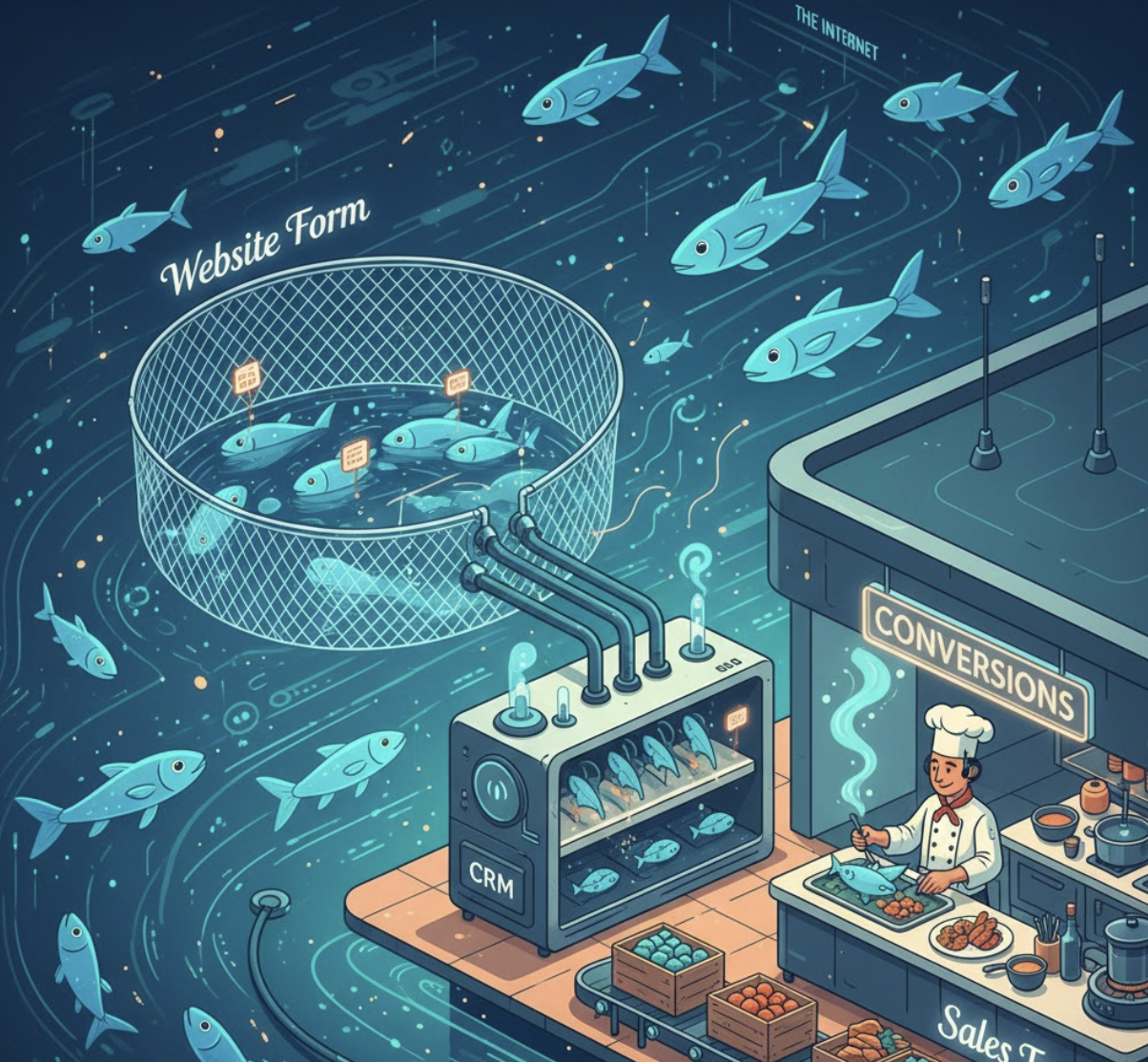
Introduction: When “Leads” Fall Through the Cracks
You spend time and money driving traffic to your website — but how many of those visitors actually turn into customers? For many businesses, the problem isn’t traffic, it’s lead handling. Prospects fill out a contact form or sign up for a newsletter, but the follow-up is slow, manual, or worse — never happens.
Integrating your website’s lead capture forms directly with your CRM or email marketing system changes everything. It ensures every new lead is instantly recorded, tracked, and nurtured — turning your website into an automated lead-generation engine.
At ActStrategic.ai, we see this as one of the most overlooked fixes in a business’s sales system. Let’s break down how to do it — and why it can dramatically improve your conversions.
Why CRM Integration Is a Game Changer for Lead Generation
A CRM (Customer Relationship Management) tool acts as your command center for managing relationships. But without integration, your website is like a shop window that doesn’t record who’s walking in.
Here’s what happens when your CRM and website work together:
| Without Integration | With Integration |
|---|---|
| Leads are manually entered | Leads are auto-synced to your CRM |
| Follow-ups are inconsistent | Automated email or SMS nurture starts immediately |
| You rely on spreadsheets | You track every touchpoint from first visit to sale |
| Data is fragmented | Data is centralized and actionable |
A connected system means your marketing and sales teams can focus on converting, not chasing.
Step-by-Step: How to Integrate CRM and Lead Capture Forms
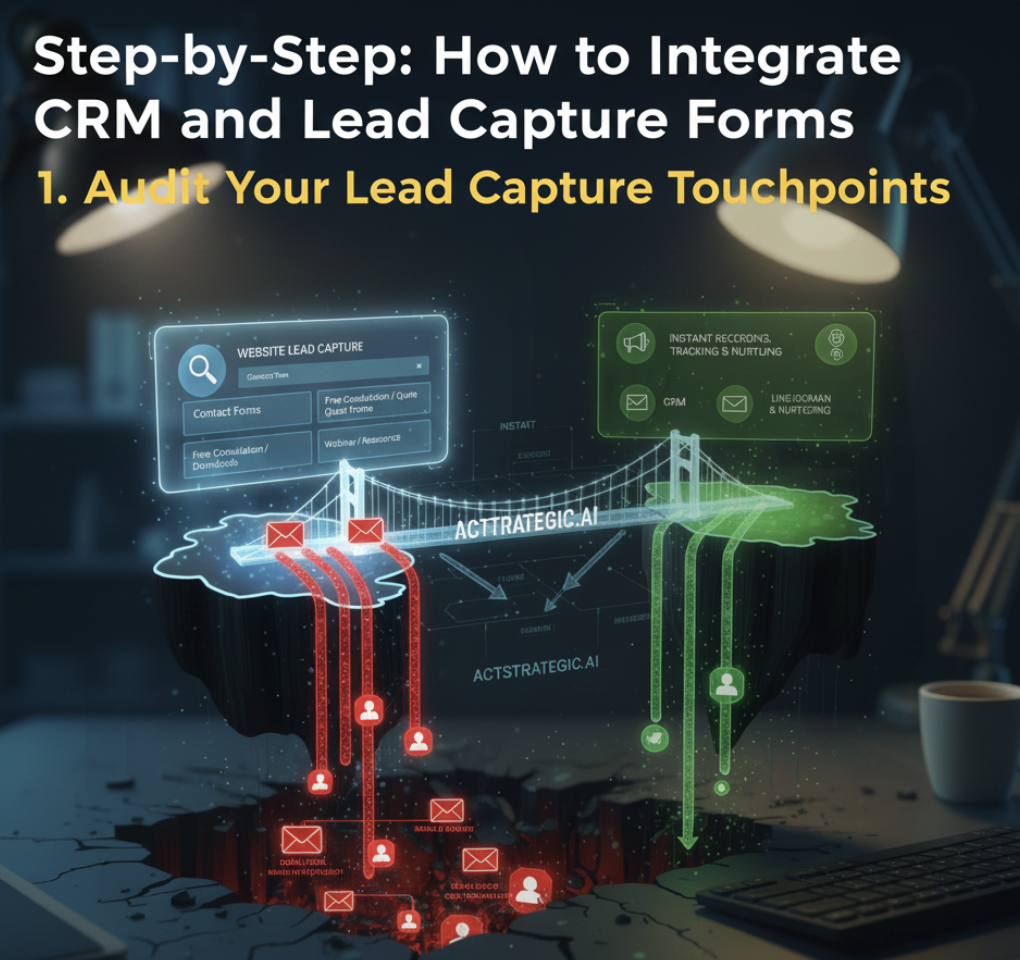
1. Audit Your Lead Capture Touchpoints
Start by identifying all the places where visitors can become leads:
- Contact forms
- Newsletter signups
- Free consultation or quote forms
- Webinar or resource downloads
Map these touchpoints and list where each form’s data currently goes. If it’s an email inbox — that’s a red flag.
2. Choose a CRM That Fits Your Business
Popular CRMs like HubSpot, Salesforce, and Zoho all offer native or third-party integrations for websites and form tools. Choose one that:
- Supports your website platform (e.g., WordPress, Webflow, or Squarespace)
- Has automation workflows or integrations with email tools like Mailchimp or ActiveCampaign
- Offers lead scoring and segmentation for better targeting
3. Connect Forms to Your CRM
Depending on your platform, you can use:
- Native connectors (e.g., HubSpot’s WordPress plugin)
- Integration tools like Zapier or Make (formerly Integromat)
- Custom API connections if you need full control over the data mapping
Pro Tip: Always test the flow. Submit a form and confirm the data appears correctly in your CRM — including name, email, and source tracking (e.g., “from homepage form”).
4. Automate Lead Nurture Sequences
Once leads are inside your CRM, automation can begin:
- Send a welcome email or confirmation instantly
- Assign leads to the right sales rep or list segment
- Trigger follow-up reminders for your team
According to Harvard Business Review, companies that respond to inquiries within one hour are seven times more likely to qualify that lead. Automation ensures that speed every time.
5. Monitor and Optimize Conversion Flows
Finally, track your results. Monitor:
- Which forms generate the most qualified leads
- Conversion rates from lead to customer
- Drop-off points in the funnel
Over time, optimize your forms (copy, design, and placement) based on this data.
Common Pitfalls to Avoid
Even the smartest integrations can fail if you overlook these:
- ❌ Duplicate entries — Use email as a unique identifier
- ❌ Overcomplicated forms — Fewer fields mean higher conversions
- ❌ Unsegmented follow-ups — Customize by source or interest
- ❌ No privacy compliance — Ensure GDPR and data protection compliance
Example Workflow: From Form Fill to Follow-Up
| Step | Action | Tool |
|---|---|---|
| 1 | Visitor submits form | Website (e.g., Webflow Form) |
| 2 | Form data syncs to CRM | HubSpot / Zoho / Pipedrive |
| 3 | Auto-tag lead source | CRM Automation |
| 4 | Trigger email follow-up | CRM / Email Marketing Tool |
| 5 | Sales rep notified | Slack or CRM task |
FAQs
1. What is CRM integration for websites?
CRM integration connects your website’s forms to your customer database, automatically recording new leads and triggering workflows.
2. Do I need a developer to integrate my CRM?
Not always. Most popular website builders and CRMs offer plug-and-play integrations or low-code connectors like Zapier.
3. How does this improve my conversion rate?
Instant, automated follow-ups dramatically increase your chance of connecting while the lead’s interest is high.
4. Which CRM works best for small businesses?
Tools like HubSpot, Zoho, or Pipedrive are affordable and scalable — perfect for growing businesses.
5. How can I track which leads come from my website?
Use UTM parameters and source tagging in your CRM to identify lead origins and campaign ROI.
Conclusion: Turn Your Website Into a Lead Machine
Integrating your website with your CRM isn’t just about saving time — it’s about capturing opportunity. Every second between a form fill and a follow-up is potential revenue lost.
If your leads are slipping through the cracks, it’s time for a smarter system.
👉 Explore our Fix My Website Conversions report to pinpoint exactly where your funnel is leaking — and how to fix it fast.