Introduction: Why Data is the Secret Weapon of Every Smart Business Owner
If your website is live but you’re not tracking what’s happening behind the scenes, you’re flying blind. Google Analytics is the dashboard that tells you who’s visiting, where they’re coming from, and what they’re doing — giving you the insight you need to make smarter marketing decisions.
But for many business owners, opening Google Analytics for the first time can feel like staring at a cockpit full of blinking lights. That’s where this guide comes in.
In this beginner-friendly walkthrough, we’ll break down what Google Analytics is, how to set it up, and how to interpret the data that matters most — so you can start making decisions that drive measurable results.
What is Google Analytics (and Why It Matters)
Google Analytics is a free tool by Google that tracks and reports website traffic. Think of it as your 24/7 analyst — monitoring every click, scroll, and visit to help you understand what’s working and what’s not.
Why it matters:
- You gain visibility into who your visitors are and how they found you.
- You can identify which pages convert — and which ones need improvement.
- You can measure the ROI of your campaigns and content.
Learn more about optimizing your website conversions →
Step 1: Setting Up Google Analytics (Quick Start)
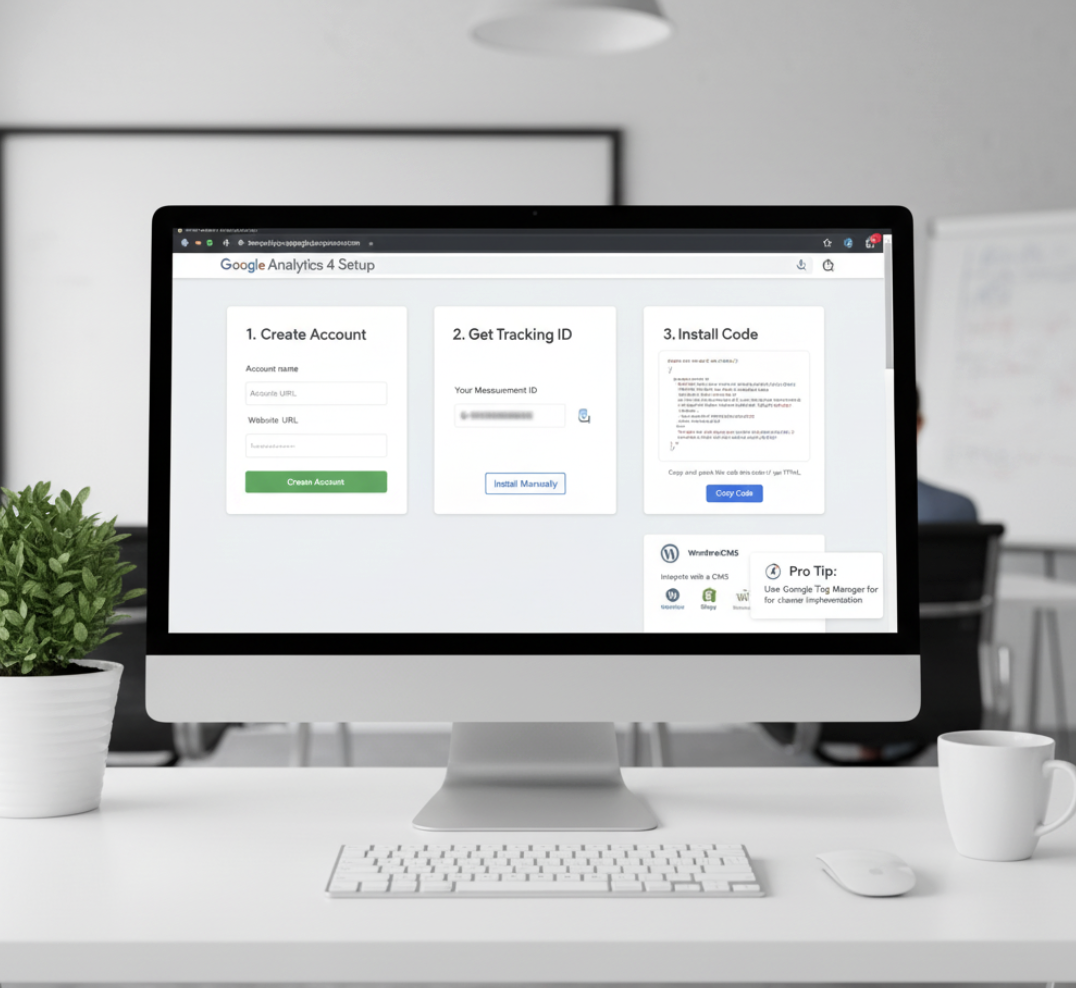
Before diving into the data, you’ll need to install Google Analytics on your website. Here’s the short version:
- Create a Google Analytics account via analytics.google.com.
- Add your website and generate a unique tracking ID.
- Install the tracking code on your website (usually via your CMS like WordPress, Wix, or Shopify).
- Verify tracking to ensure data collection is active.
🧭 Pro Tip: Use Google Tag Manager for cleaner implementation — especially if you plan to track events like button clicks or form submissions.
Step 2: Understanding the Key Reports
Once setup is complete, Google Analytics starts collecting valuable data about your visitors. Here are the most useful reports for beginners:
1. Audience Overview
Get a snapshot of your visitors:
- Users: Total unique visitors.
- Sessions: Number of visits (some users may visit multiple times).
- Bounce Rate: The percentage of visitors who leave after viewing one page.
- Average Session Duration: How long people stay on your site.
2. Acquisition Report
Shows how visitors found you — through:
- Organic Search (Google, Bing, etc.)
- Social Media (Facebook, LinkedIn, etc.)
- Paid Ads (Google Ads, Meta Ads)
- Direct (typed your URL directly)
3. Behavior Report
Reveals what users do on your site:
- Most visited pages
- Time spent on each page
- Exit pages (where people drop off)
4. Conversion Report
If you’ve set up goals (like purchases or form fills), this tells you what’s driving results.
Step 3: Reading the Data Like a Strategist
Numbers alone don’t create growth — insights do. Here’s how to interpret what you see:
| Metric | What It Tells You | What To Do About It |
|---|---|---|
| High Bounce Rate | Visitors aren’t finding what they expected | Improve messaging or load speed |
| Low Average Session Duration | Content isn’t engaging enough | Add visuals, improve flow, clarify CTAs |
| High Conversion Rate | Visitors are taking action | Double down on what’s working |
Step 4: Making Data-Driven Decisions
With data in hand, you can:
- Refine your content strategy: Focus on topics or pages that attract traffic.
- Optimize conversions: Identify leaks in your funnel.
- Allocate marketing budget smarter: Invest in channels that drive ROI.
That’s how smart businesses use Google Analytics — not to admire charts, but to steer growth with clarity and confidence.

What’s Next: Turning Insights Into Action
Understanding your website traffic is just the first step. The real magic happens when you act on it — fixing low-performing pages, tightening your funnel, and improving the customer journey.
👉 Explore our Fix My Website Conversions tool to pinpoint exactly what’s costing you leads and sales — and get a clear roadmap to fix it.
FAQs
1. Do I need to know coding to use Google Analytics?
No. Most platforms (like WordPress or Shopify) let you install it with a simple plugin or code snippet.
2. What’s the difference between Google Analytics 4 (GA4) and the old version?
GA4 tracks users across devices and events — offering a more complete view of user behavior.
3. How often should I check my Google Analytics data?
At least once a week. You’ll catch performance drops early and keep tabs on trends.
4. Can Google Analytics show me which keywords bring visitors?
Partially. You’ll see limited data; for deeper keyword insights, use Google Search Console.
5. What’s a good bounce rate?
It depends on your industry, but generally, 40–60% is average for most websites.
Conclusion: Knowledge Fuels Growth
Google Analytics doesn’t just show you numbers — it shows you opportunities. Once you understand where your visitors come from and how they behave, you can optimize your website experience for engagement and conversions.
📈 Ready to uncover the story behind your traffic? Get clarity on your sales system with our Fix My Website Conversions tool